 Internal Display
Free beta · No registration
Control your MacBook’sbuilt-in display.
Switch the built-in display off or on from the menu bar or a keyboard shortcut. External monitors stay on, with their settings and desktop layout unchanged.
Built-in display on
Controls
A configurable shortcut and optional automatic shutoff of the built-in screen and keyboard backlight after login.
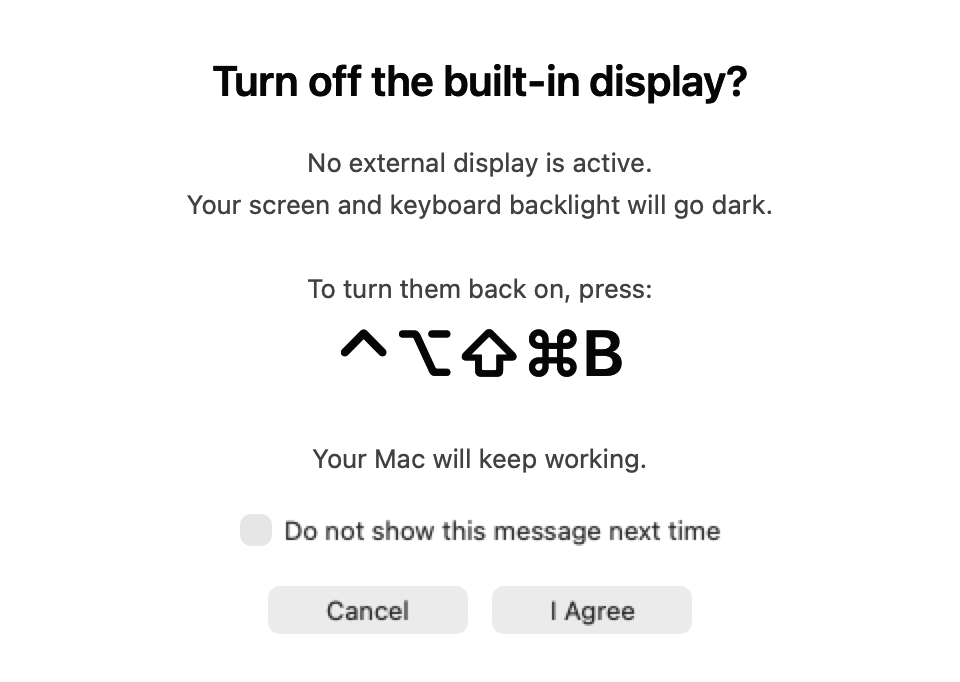
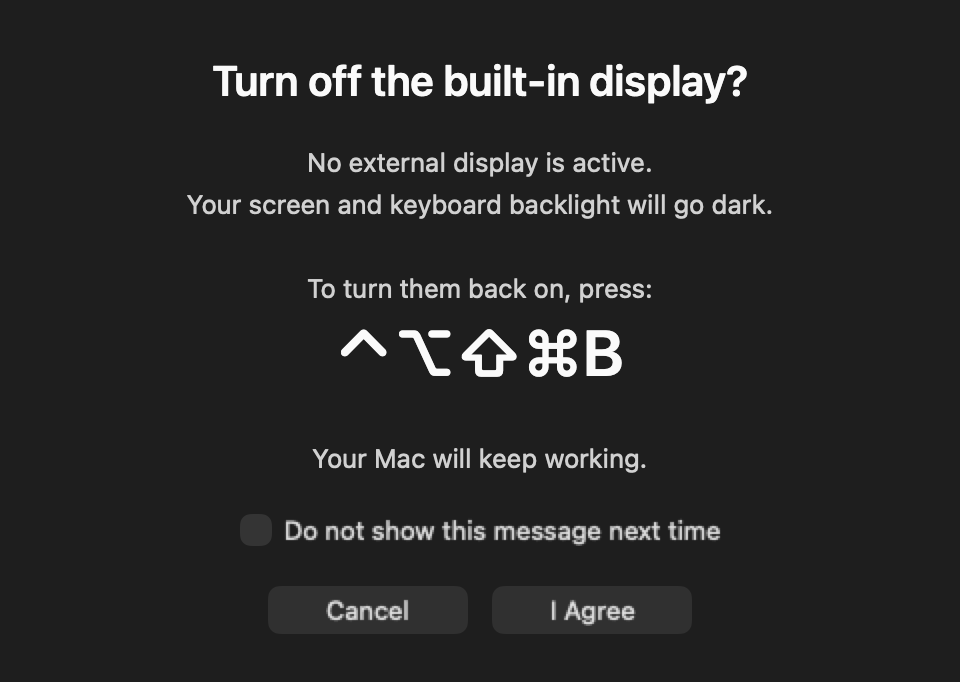
Confirmation shown when no external monitor is connected. App interface currently in English.
FREE BETA
Beta for macOS
System requirements
Apple silicon MacBooks running macOS 26 or 27. The app checks built-in display compatibility before enabling control. Display mirroring is not supported.
Beta version 1.6.12 · 32
SHA-256 checksum
02b0570134dcf4288faf2a4bf12222c9fda1e710741d0fb9b4bedf45d3e4d6a7Installation
- Open the DMG and drag Internal Display to Applications.
- Launch Internal Display from Applications once, then dismiss the macOS warning.
- Open System Settings → Privacy & Security → Open Anyway for Internal Display, then authenticate and confirm.
Only approve a download you trust. Managed Macs may prohibit this exception. Do not disable Gatekeeper or remove quarantine attributes.
What’s new
Beta 1.6.12 · 32
- Fixed an issue in the beta update publishing process.
- Display and keyboard backlight controls are unchanged.
FAQ
What happens to windows on the screen I turn off?
They stay where they are—the app does not move them to an external monitor. Move any windows you need before turning the screen off. macOS still treats the built-in display as connected, so you can move the pointer and windows onto it even while it is dark.
What happens to the keyboard backlight?
It switches off with the built-in display and returns to its previous brightness when the display is restored.
Can I use it without an external monitor?
Yes. Before switching off, the app shows your configured recovery shortcut. Use it to restore the display.
How does this affect Mac sleep?
While Internal Display keeps the built-in screen off, it temporarily prevents the Mac from sleeping due to inactivity. Restoring the screen releases this restriction without changing your power settings. Manual sleep and closing the lid can still put the Mac to sleep. To keep your Mac awake independently of the built-in screen, use Amphetamine with a timed or indefinite session.
Amphetamine on the App StoreDoes the app send diagnostics?
The app collects no usage statistics and sends no automatic diagnostic reports. To report a problem, open Report Issue, choose a reason and review the technical data before pressing Send. This required snapshot contains limited system and app-state information to help us investigate. Choose Something Else to add a description; a description is required for this option. It stays in our private report service; only structured answers and allowlisted technical data go to our private engineering issue tracker. No registration is needed and we do not send individual replies. Fixes are delivered in app updates. The report service also processes connection metadata.